This is a two step process: Export the master (.odm) to regular (.odt) then Export that as epub. I’ve got my file.
The question is now: Where do I put it on the Kindle?
The mount point contains:
- .active_content_sandbox
- .bcache
- audible
- documents
- fonts
“documents” seems logical.
That contains three directories (dictionaries, Downloads, My Clippings.sdr) and two files (Kindle_Users_Guide.azw3 and My Clippings.txt).
Under Downloads, there is one directory: Items01.
Under Items01, there are directories for each book with an “.sdr” extension.
A lot of them are empty.
The ones with files in them are baffling. There are small .phl, .yjf, and .yjr files. The content seems to be LanguageLayer.en.<ID>.kll.
Time to ask an AI.
Where do I put an epub file on my Kindle?
You’ve got to love proprietary devices…
You cannot directly place EPUB files into a folder on your Kindle, as the device does not natively support the EPUB format and will not recognize the file if simply dragged into the Documents folder via USB. To read an EPUB on your Kindle, you must use one of the following methods to have the file converted and delivered to your library:
- Send to Kindle Web: Go to Amazon’s Send to Kindle page, sign in, and drag and drop your EPUB file into the upload area. Amazon converts the file automatically, and it appears in your Kindle library and syncs to your device.
- Email: Find your Kindle’s unique @kindle.com email address in your Amazon account settings, and email the EPUB file as an attachment to that address. You must first verify your sending email address in your Amazon “Personal Document Settings.”
- Send to Kindle App: Use the desktop or mobile Send to Kindle app to drag and drop or share the EPUB file directly from your device to your Kindle library.
While older guides suggest side-loading converted files (like MOBI or AZW3) via USB into the Documents folder, modern Kindles rely on the cloud-based Send to Kindle service for EPUBs to ensure proper conversion and library syncing.
I like the email concept. What’s the “Send to Kindle app”, though?
That looks easy enough, but the point of local testing is to test locally. I don’t want to upload my book to Amazon, yet. I downloaded the app. When did “program” become “app”?
I’d bet it works the same way as the web page: Upload to cloud then push down to me.
Let’s see what happens…
I right clicked on it. The “Send To” option is gone, because of course it is. It’s hiding under “More Options”. “My Kindle” was in the list.
My Kindle is also in airplane mode.
And the app requires creating a Microsoft passkey, which requires scanning a QR code, which my phone refuses to see from my monitor.
It timed out while I was trying.
After I finished screaming at the various computers involved, a second attempt went through with just my username and password.
File is now in the cloud. Yay, everyone on Earth now has access! I wonder who Amazon will sell it to. I can’t imagine there is any privacy. Much to my surprise, the License Agreement is both sane and readable. At least they don’t claim rights to what you upload. Patreon used to, but I’m not sure it still does; lots of people are putting stuff on there.
It’s there! With the cover!
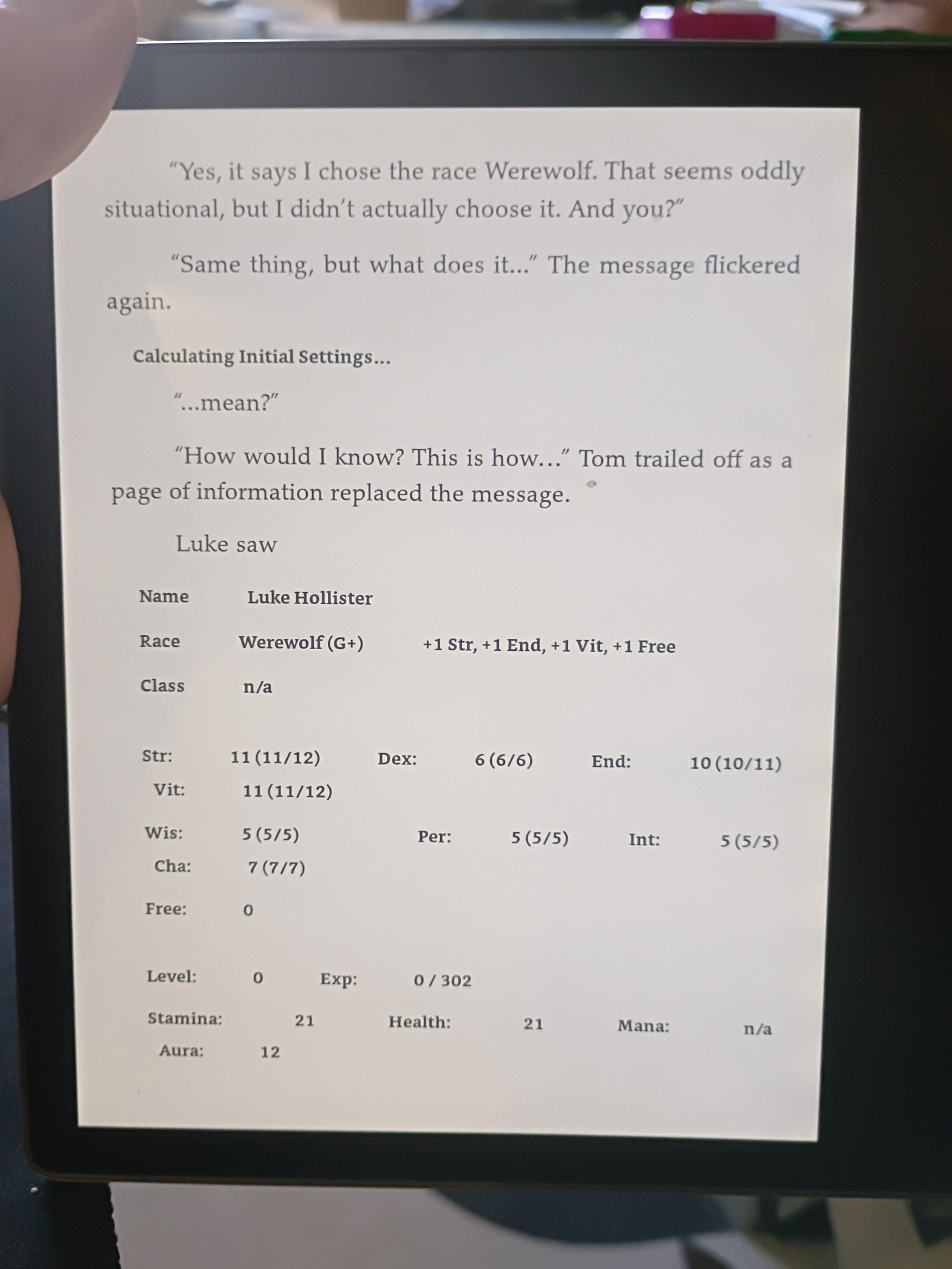
The formatting looks good for such a quicky job.
As I worried, the character sheets are too wide. The font change works well. The tabs are too wide. Need two-column, not four-column, stats. Three fit, but two rows of four doesn’t split into threes – and they might overflow when triple-digit stats start showing up.
On the bright side, at only two columns, I can spell things out rather than abbreviate everything to death (“Strength” instead of “Str”).
That was a fun lunchtime adventure.
Update: How long is it? Holy shit! Chapter 25 in the table of contents starts at page 610. About twice the 8×10 count. I’m so excited now. (Obviously the word count hasn’t changed: ~137K.)

